After many years as a Mac user, the last couple of years I’ve become increasingly frustrated with the macOS software direction and the continuous erosion of the historically vibrant indie developer ecosystem.

I use my Mac for many hours a day: to plan, read, work, code… Using a device that helps me get things done and stays out of the way is critical to me. Apple’s macOS is still that device to me, but there’s been enough warning signs that make me take a step back to see what’s out there.
So, what better time than the holidays to do an experiment?
- Can I find a Linux Distribution and Desktop Environment that I, a seasoned Mac user, enjoy using?
- Can I successfully migrate all the data I will need for two weeks?
- How do I feel after these weeks? What did I like, what did I dislike? Should I move to Linux full time? (unlikely, but possible).
At the end of the day, I’m looking to have a clear understanding on what would it take if I do decide to make the jump permanently, what tradeoffs would I have to make. As Steve Jobs said, it’s good to have options for the “just in case” scenario.
1. Great, but what Linux Distribution should I choose?
Let me preface this by saying I’m not looking to spend time tinkering with my device. I want something that I can set & forget, that’s stable, secure and dependable. Something that enables me to focus on my work. With that in mind, the answer was a no-brainer: Debian.
Why? It’s run by tens of millions, including the International Space Station, CERN and Google. And it’s the foundation for many other distributions: Ubuntu, Mint, Pop!, Kali… You can’t go wrong with Debian: dependable, trusted, popular, and secure.
Here’s how the latest Debian 13 release was reviewed: “Debian 13 doesn’t try to wow you with flashy gimmicks or unnecessary bloat. […] For anyone looking for stability, security, and reliability, […] Debian continues to stand as one of the most trusted Linux distributions.” Source
Excellent! Now that we’ve chosen Debian, all that remains is confirming your “Desktop Environment”, that’s the graphical interface of your operating system.
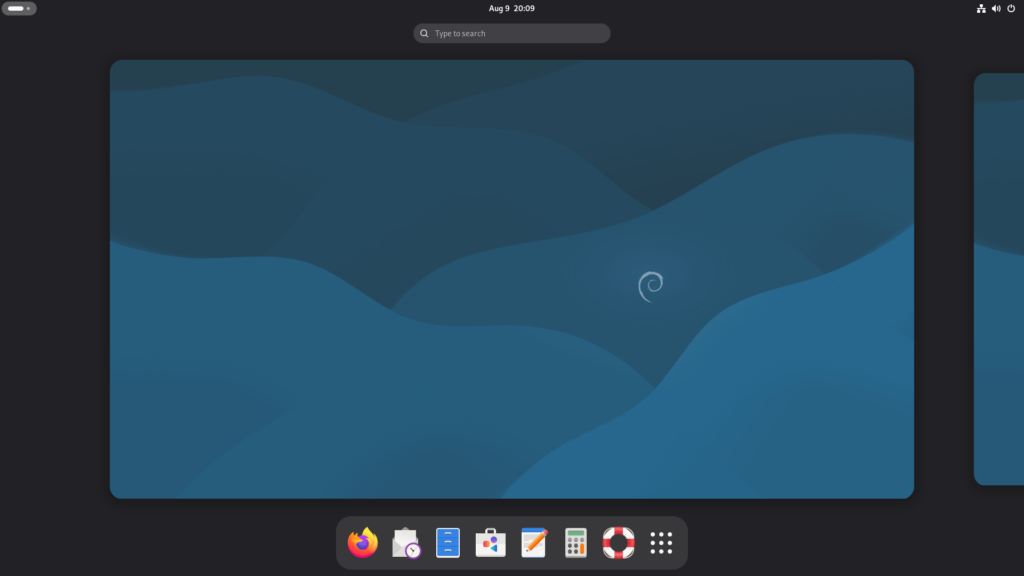
Debian installs GNOME by default, and for good reason: it’s modern, minimalist and distraction-free. Oh, and you might notice it unapologetically borrows from macOS.
2. Installing the OS & First Impressions
Now that we know what we want to install, let’s get to it. And the good news is, it’s remarkably simple: from downloading the image to landing in the desktop it took less than 30m. And most importantly, everything worked out of the box. You’ll find step-by-step instructions at the end of the post.
Once you’re in the desktop, coming from macOS, a couple things will surprise you:
- The desktop is permanently clean, no files or clutter, just a nice background. You can’t add stuff there.
- Spaces are a key part of the experience, switch between them with (Windows+Alt Right/Left).
- The Windows key triggers Universal Search (aka ‘Spotlight)’, you can quickly open apps, files or move apps between spaces. This is also the ONLY place where you’ll see the app launcher (aka ‘Dock’).
- The OS is optimized for both mouse AND keyboard use – in fact you can become extremely productive with only the keyboard. Using the mouse is an option but not a requirement.
- There’s no maximize/minimize buttons, instead you use edge display snapping or key shortcuts (Windows + Up/Down/Left/Right).
Probably the thing that struck me the most at first is how the OS goes out of its way to incentivize you to focus and stay in flow. At first it threw me off, but it has become one of the things I enjoy the most. How does it do that, you ask?
- Incentivizing you to have in each space ONLY what you’re working on at that moment, which massively reduces distractions.
- Making it trivial to move between spaces without distractions, giving you more screen real estate when you need it or allowing you to park things for later.
- No OS bloat or unnecessary gimmicks – every feature is about enabling YOU while staying out of the way.
To be fair, due to my years of experience, my inclination was to use it like macOS. And, to be clear, you ‘can’ do it: ‘Tweaks’ adds back maximize and minimize and ‘Extension Manager’ can make the dock permanent or even allow files on the desktop. But then you’re missing out on what makes Debian/GNOME awesome.
Instead, I left my old habits behind and embraced its focused philosophy. Boy I’m glad I did: it naturally helped me stay in focus, I was truly surprised at how much I enjoyed using it and how much stuff I got done.
Oh, did I mention it’s extremely fast and efficient? Yep! The same device that was lasting about 5h on battery now lasts 10h and I’ve not even heard the fan – and it looks beautiful too.
3. Moving Data & Installing Apps
Broadly speaking – there’s two main buckets here: the data I needed and the apps I used. And this is where we start to hit some bumps in the road.
Data:
- Documents: the easiest by far, as simple as moving with a USB. Everything worked just fine, no issues. Syncing is also trivial using file share services or rsync.
- Music: unfortunately, there’s no simple solution to import your iTunes library. Instead, I copied all the songs into the Music folder, which works great but loses all metadata (playlists, play counts, ratings…). If you know of a reliable way to import it please let me know.
- Photos: moving the data from Photos was not an issue, as simple as exporting the images. Keeping it in sync with iCloud, that’s a different story. As long as you keep the source of truth in your device you’re fine though, just go online and download them every so often: not great, not terrible. Like music, this is an area I’m likely to revisit – there must be a better way.
All in all it was easier than I had expected, even if the Music and Photos import was not as smooth as I’d like.
Apps:
One of the main reasons I use the Mac is because of its vibrant indie ecosystem, so unsurprisingly this was the most painful part of the move. Here’s some examples:
- RSS Reader (NetNewsWire): The closest I found was Liferea, it gets the job done. I also tried Newsflash, but it could not compete in terms of speed.
- Mail (Apple Mail): No direct replacement, you either have to go super simple with Geary or complex with Evolution. I ended up with Evolution.
- Research (DevonThink): Obsidian is able to do most of what DevonThink offers and, given its extensibility, you can tweak it to your needs.
- ToDo (Things 3): Planify appears to be close to it, although I did not test its syncing.
- Mastodon (Ivory): Tuba has great bones, but is not as feature complete yet – basics like keeping timeline position are not present.
- Blog (MarsEdit): I could not find anything that could replace it, instead I used the WordPress web interface which was decent and got the job done.
- Scripting/Text Manipulation (BBEdit): Geany is quite close in its simple appearance and powerful functionality.
- IDE (Nova): It does not have the joyful experience that Nova offers, but VSCodium gets the job done.
- Terminal (Apple Terminal): Although Debian comes with Terminal, I prefer using the newer (and nicer) Console.
- Image Editing (Pixelmator/Acorn): Could very easily use GIMP for all my basic image editing needs.
- Browser (Safari): Firefox ESR worked great and integrated perfectly with the OS, I’ve also been using GNOME Web quite a bit. As backup, in case a website misbehaved, I installed Chromium.
- Web Apps (Safari): Web does an excellent job to create web apps, arguably better than Safari. It uses the WebKit engine behind the scenes, the same as Safari.
- Office (MS Office): LibreOffice worked great for everything I needed, primarily Excel and Word.
- Music (Apple Music): Really enjoyed Gapless for my music needs, super fast and a delight to use. If I could import iTunes Music library metadata, this could trump any other music app I’ve ever used – it’s that good.
Is the Linux app ecosystem enough? For the most part, yes. But some concessions would need to be made. I would like to see more indie developers able to make a living from Linux software, which in turn would deliver even more great apps.
4. What’s next
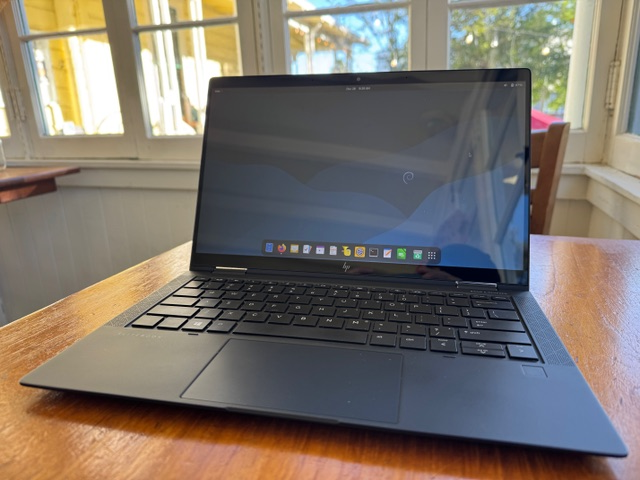
Well, I must confess I enjoyed this experiment much more than I anticipated. The setup was simpler than I thought, using Debian 13 has been a delight, and it’s been a productivity boost.
All things come to an end though, and the two weeks are over. Am I ready to leave macOS behind? Two weeks ago I would have bet no. Today, I absolutely could, my ‘just in case’ plan is ready.
What’s more, I’m going to be keeping this productivity booster for daily use. I’ve added a couple more tweaks to make sync with the Mac seamless so I can have the cake and eat it too!
It’s been an amazing ride and a very fun experiment, I may make this into a yearly tradition – we shall see.
Questions / Feedback I’m @MarcMasVi
Marc
—
Appendix – Installing Debian 13 + GNOME
Step 1: Get a computer, almost any device will do (except for ARM macs)
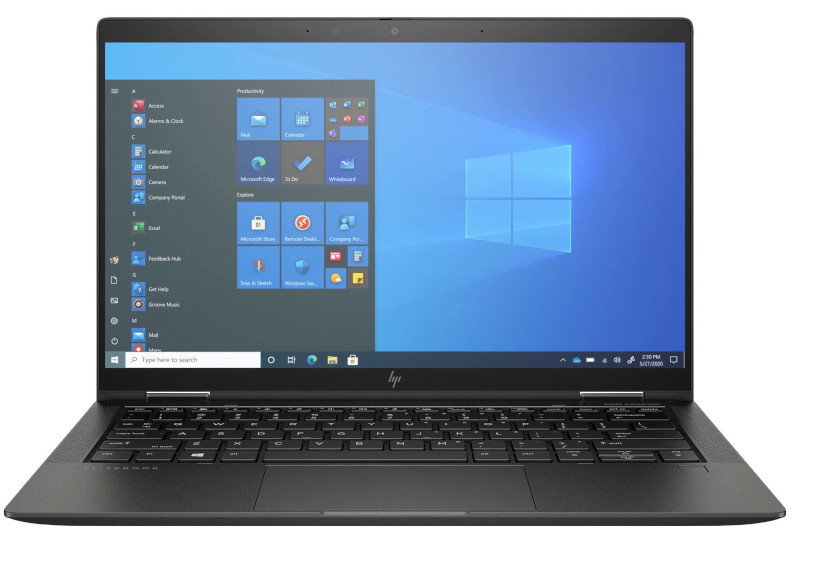
Step 2: Download the image an burn it into a USB. For us mere mortals, keep it simple and grab the 64-bit PC DVD-1.iso, it includes everything you need in one neat package. Here’s the link to the downloads page.

To burn the downloaded image you can use Raspberry Pi Imager and you’re off to the races.
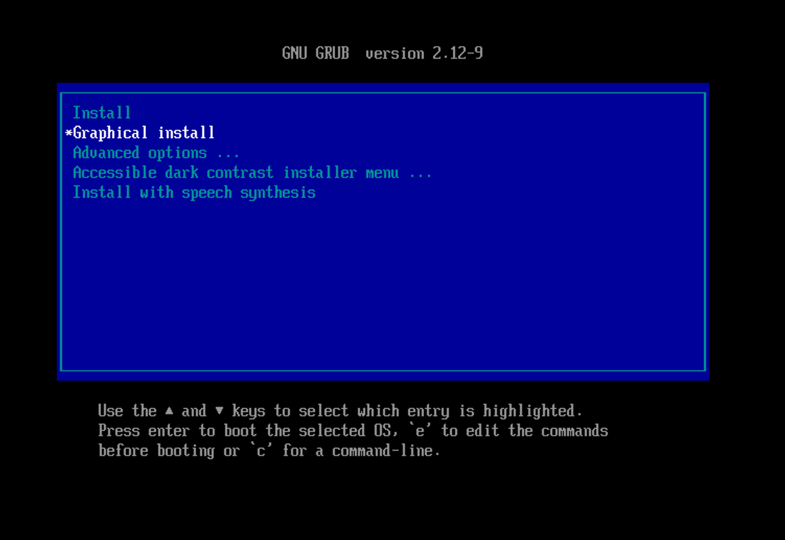
Step 3: Boot into the BIOS and boot up the USB. From there, some installation notes:
- Choose Graphical Install, will make the rest of the process more visually pleasing.
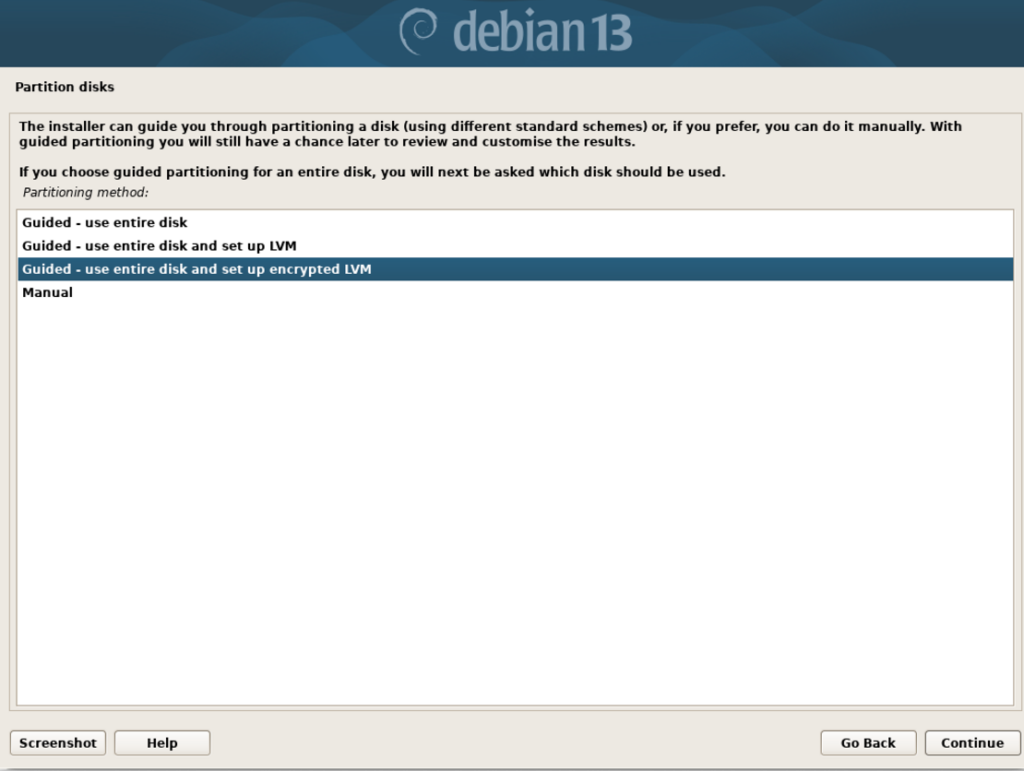
2. When asked about Partition disks (assuming the device data can be erased) choose “Guided – use entire disk and set up encrypted LVM”.
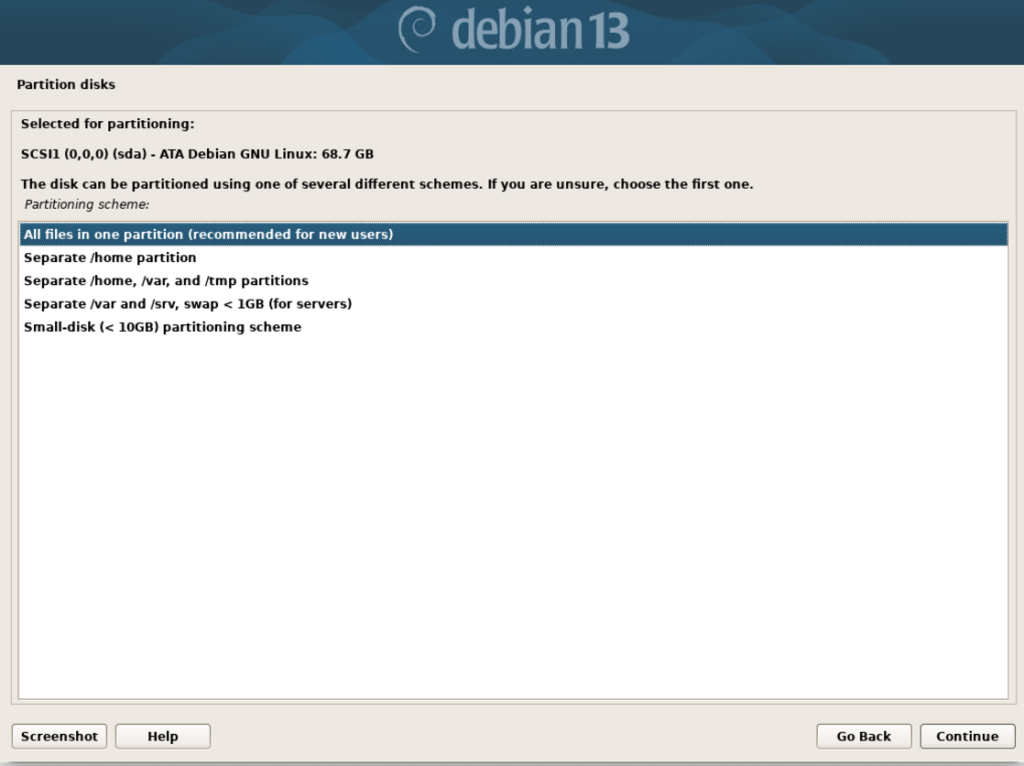
and confirm “All files in one partition (recommended for new users)”. We’re ‘new users’ after all.
Next, lets confirm we want GNOME as our Desktop Environment, your selection should look like the following:
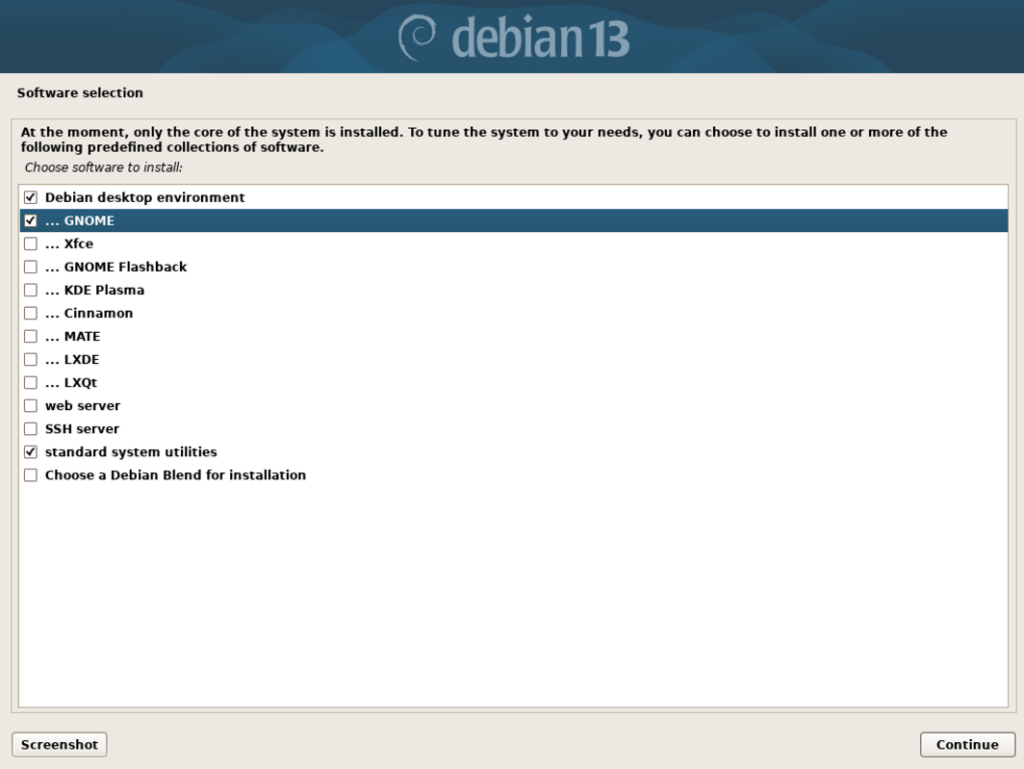
Note: You could choose a non-default environment such as KDE Plasma (Windows inspired) or Xfce (retro) – but that’s beyond the scope of this post.
From there you’ll be asked to choose username & password and voila! You’re done with the installation, after a restart you’ll see your new desktop:
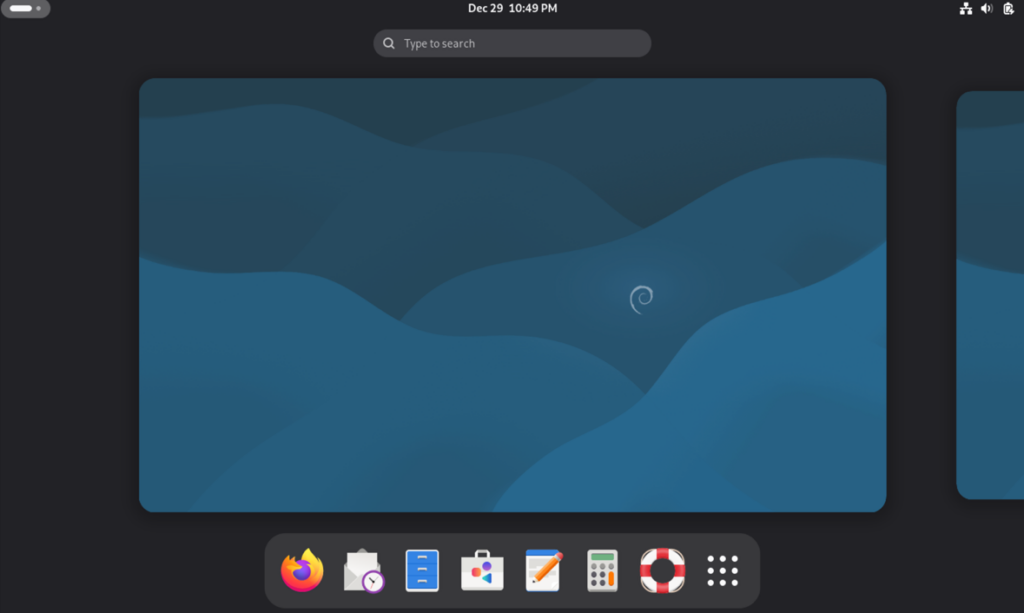
Step 3: Installing Software
You can use the app called “Software” to find and download apps from the Debian repository. Most people will want to also access apps from Flathub, which enables you to have access to many more apps. To do that you should write these 3 lines in your terminal and restart.
- sudo apt install flatpak
- sudo apt install gnome-software-plugin-flatpak
- flatpak remote-add –if-not-exists flathub https://dl.flathub.org/repo/flathub.flatpakrepo
Note: If terminal says you don’t have sudo rights, it means you set a root password during the initial installation. You must grant your username sudo rights. For that, simply type, in order (replace your_username by your actual username), and then restart:
su -- usermod -aG sudo your_username
And that’s pretty much it, you’re good to go! Here are the top downloaded apps, you can search and install them from your Software app. It will keep them updated too!
Did I miss anything? Suggestions? Do not hesitate to reach out.